TABLE OF CONTENTS
Policy
YNS’ Member Support Center team will screen for duplicate records and complete merges on a monthly basis to maintain a clean and accurate database.
Where a prospect record is found to have a duplicate non-member or member account, the prospect record will be deleted.
Where a duplicate non-member and member record is found, staff will ensure the member record includes key contact information, then merge the non-member record into the member record.
Where duplicate member records are found (both active), or for other complex scenarios where there is an individual paying on multiple units, staff will refer to a Sales Team member for deeper review and outreach to the member to determine the best path forward.
Merging Duplicate Profiles
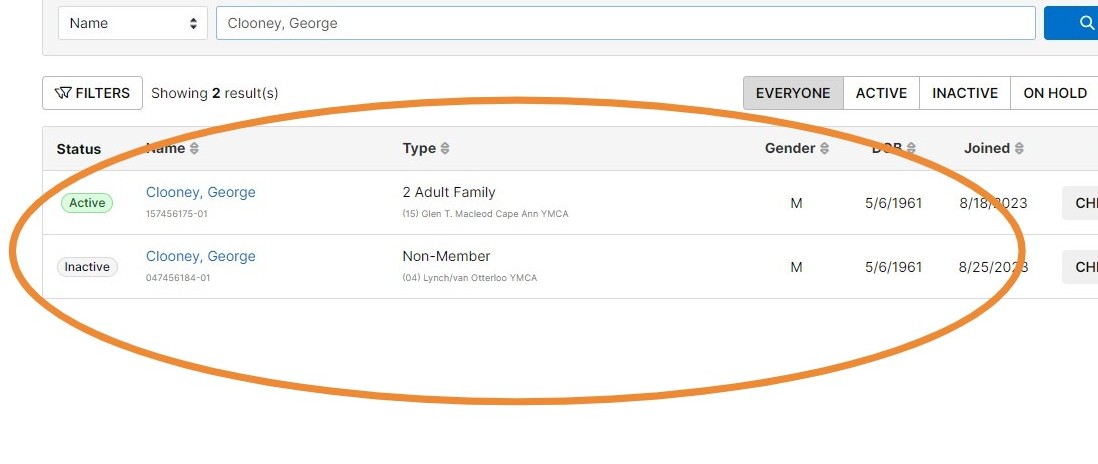
- When searching for a member, you may discover that there are duplicate accounts for the same person. This could happen when a customer has an account made at the local branch and then makes an account for themselves online, or due to a slight misspelling or mistake in entering contact information. To avoid having two separate accounts for a member you will want to merge them into one. First, you will want to confirm that the two accounts are the same person - in this case they have the same birthdate and George has confirmed that he made an online account the other day.
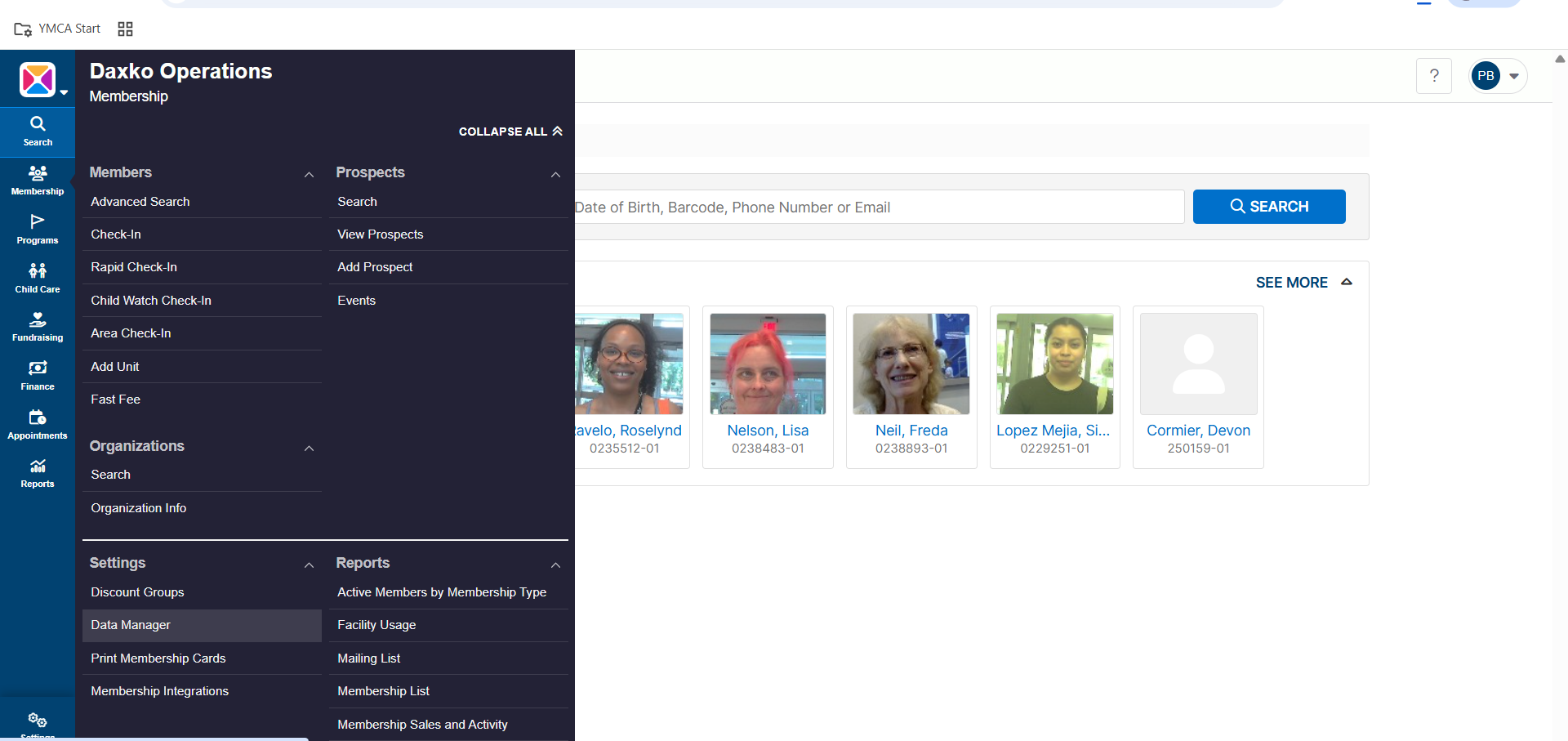
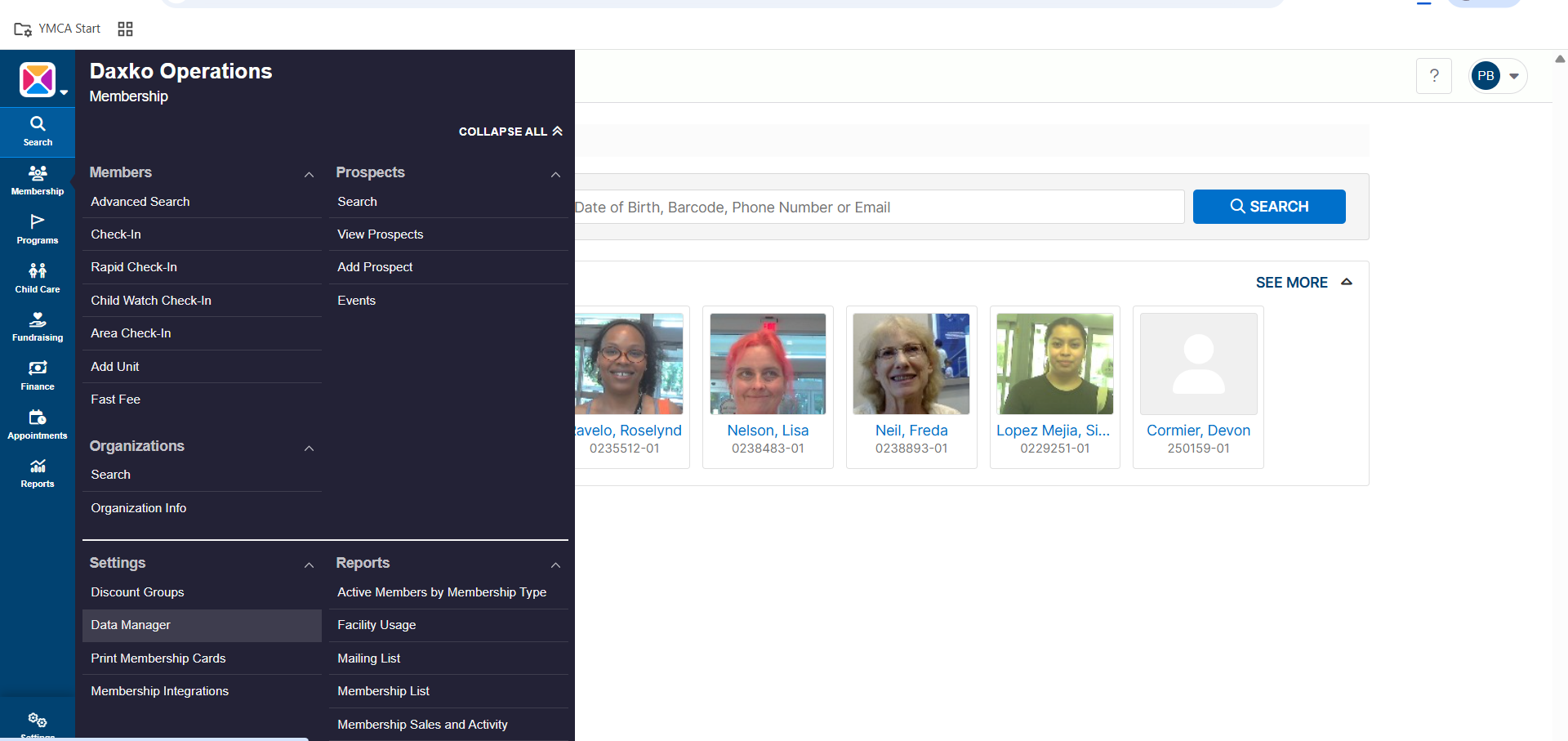
- Once you confirm that you will need to merge the two accounts, click on the "Membership" tab on the left of the page and select "Data Manager" under Settings.
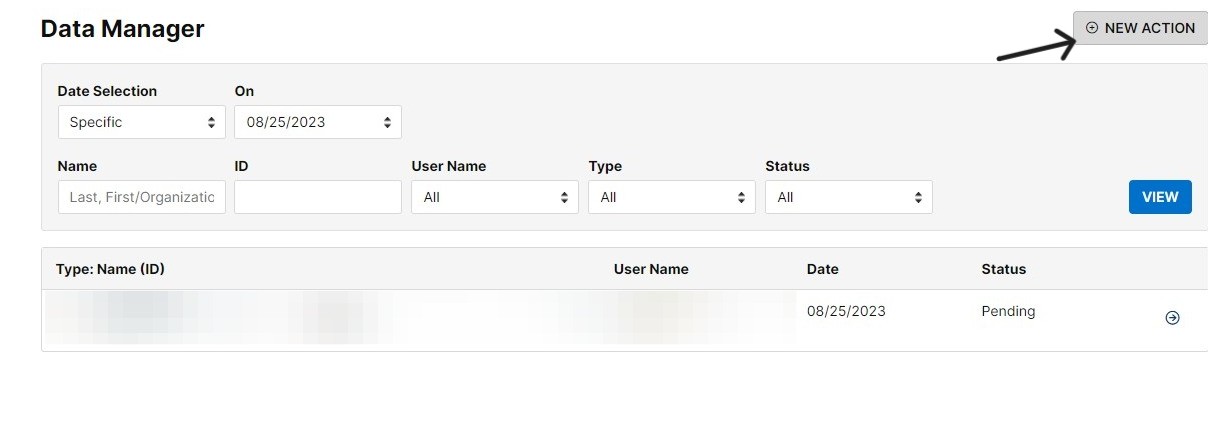
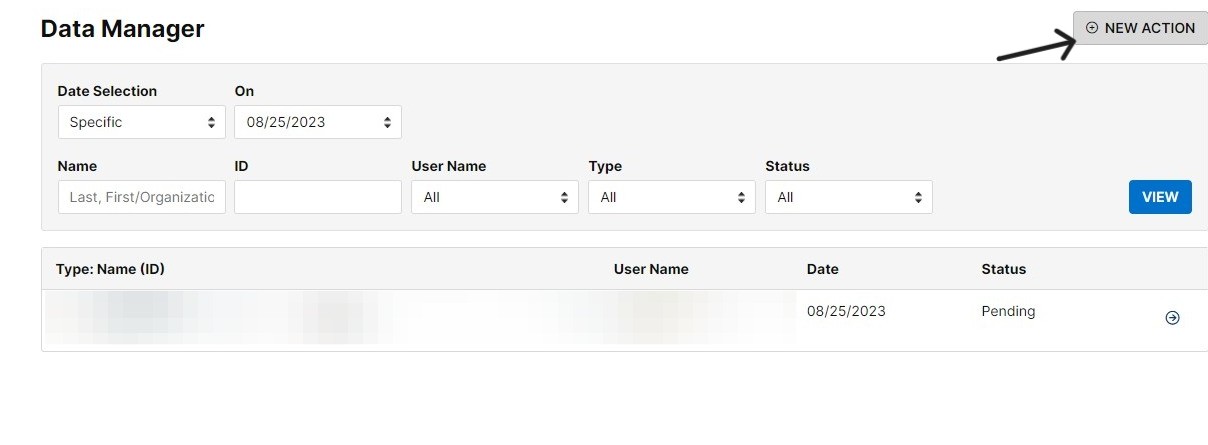
- On the Data Manager page, click the "New Action" button at the top right to create a new change.
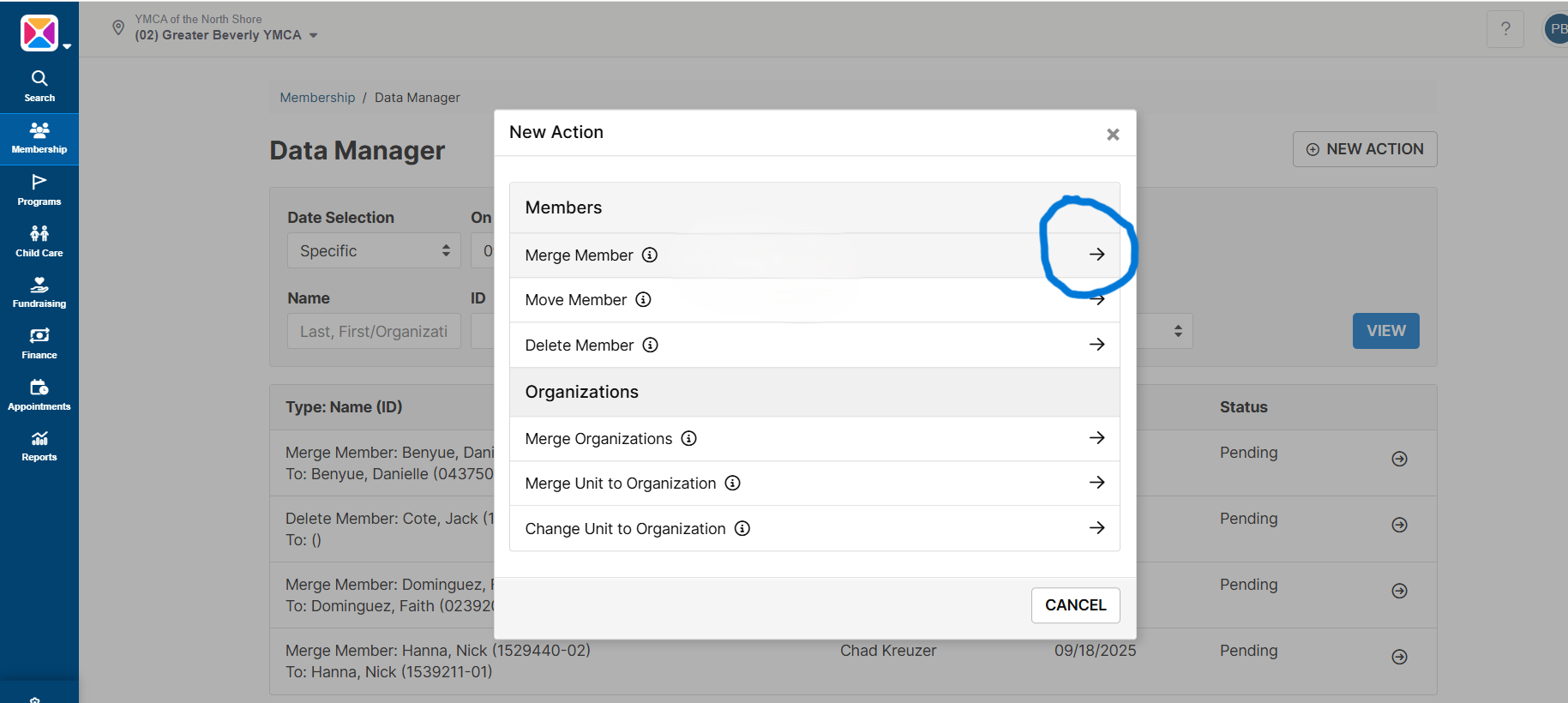
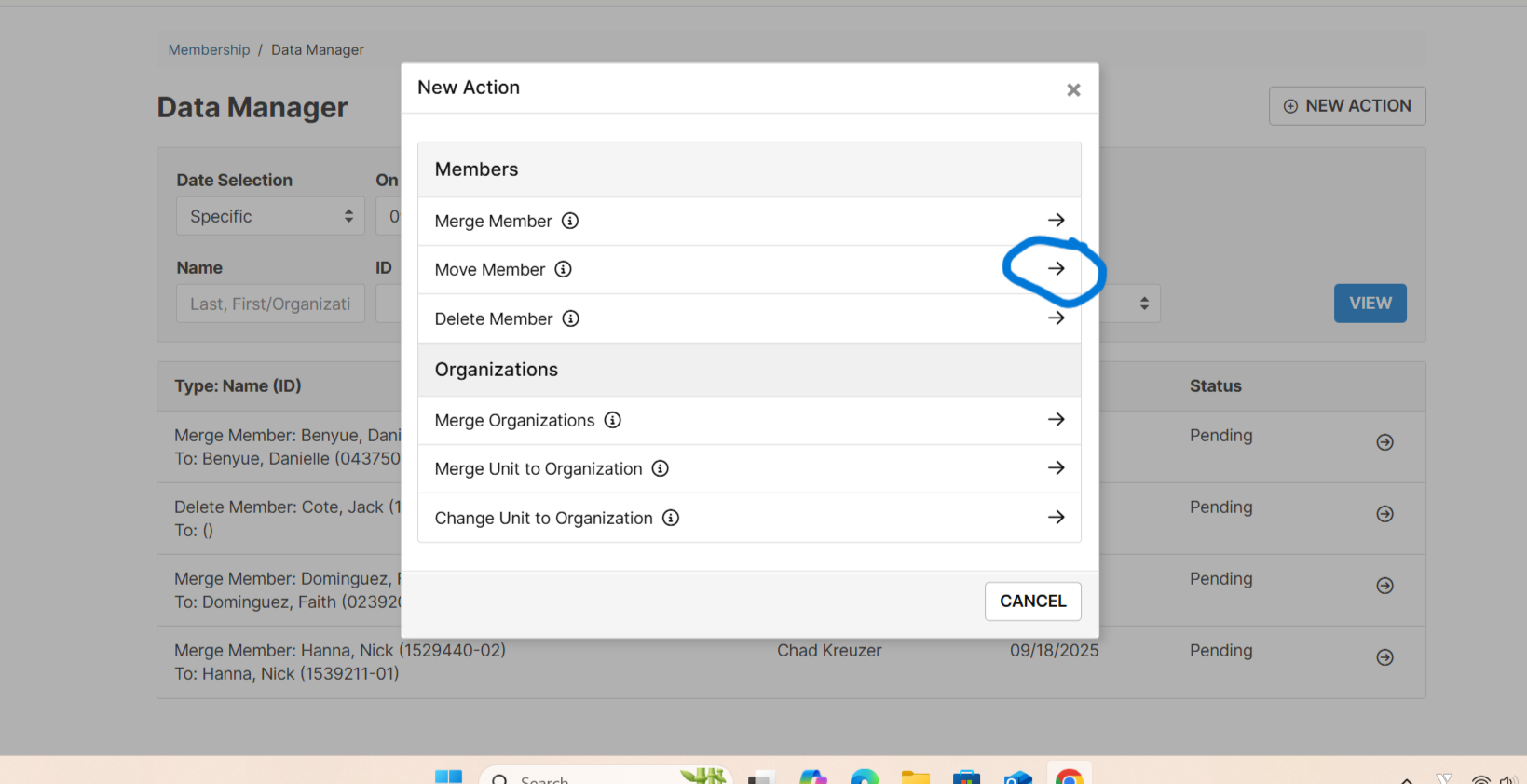
- Here, click the arrow button next to the "Merge Member" action.
- FIRST, you will search for the member you would like to MERGE/REMOVE.
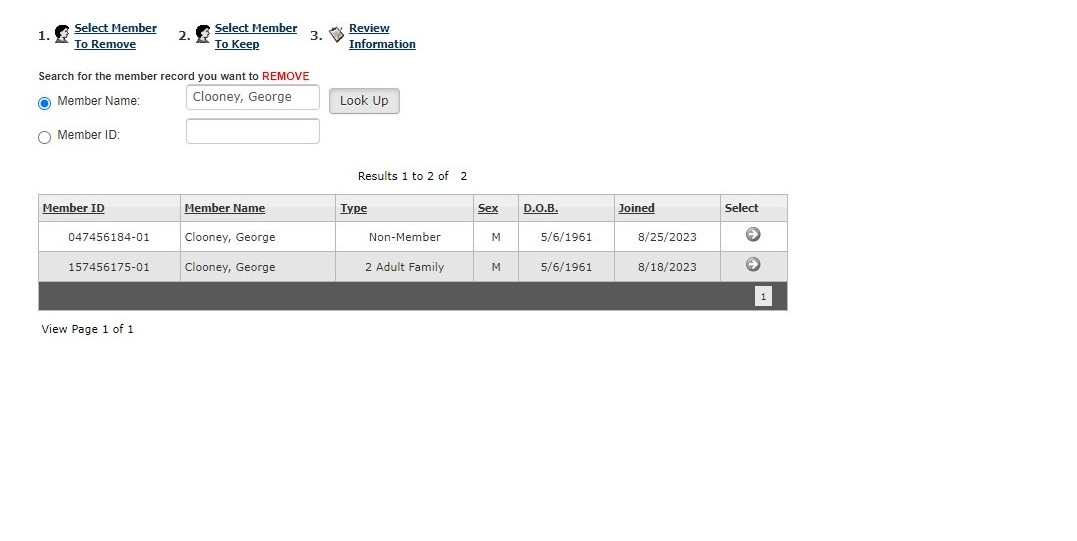
- Click on the arrow button next to the profile you would like to MERGE/REMOVE.
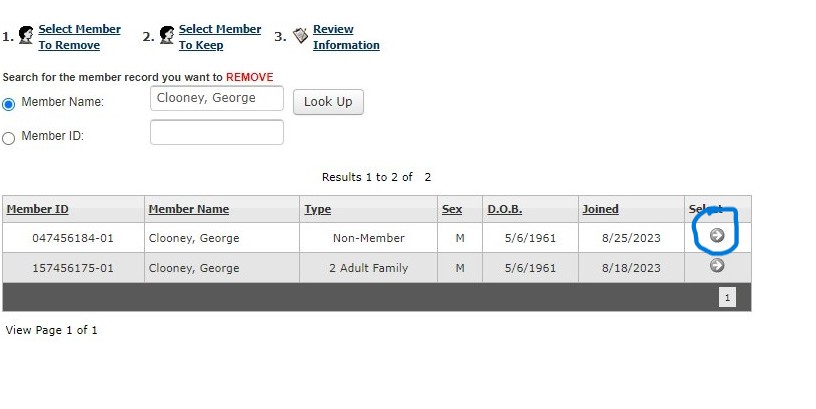 Tip! Step 2 of the wizard automatically searches based on the member name entered in Step 1.
 - Next, search for and click on the arrow button next to the Member you would like to KEEP/Merge Into.
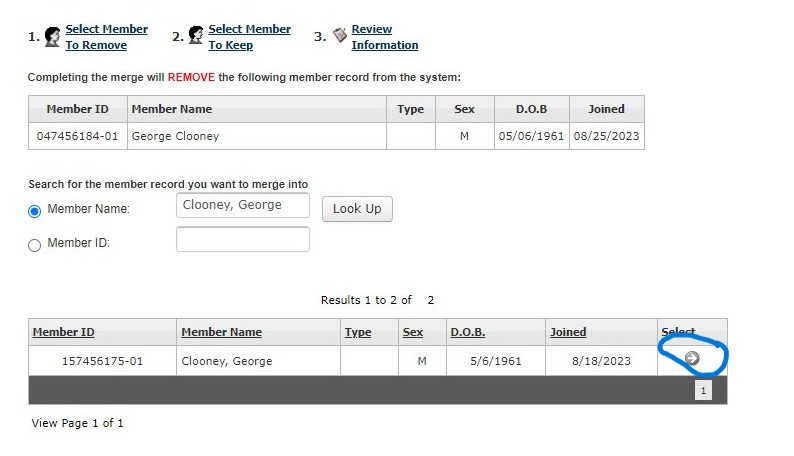
- Click the "Submit" button at the bottom right of the page.
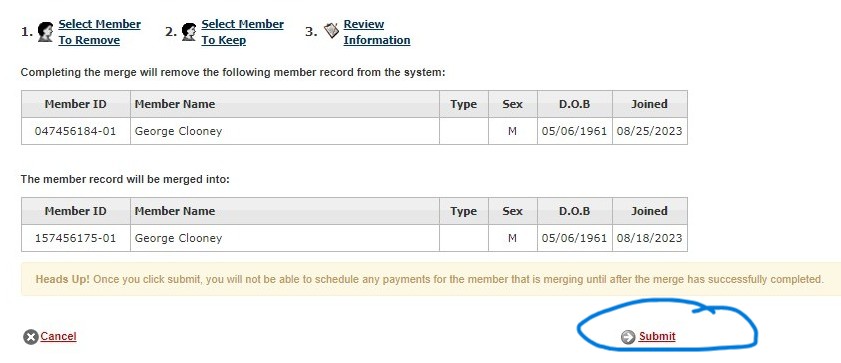
- On the Data Manager page, you can now see that the Merge is Pending. Click on the arrow button next to Pending to see more details.
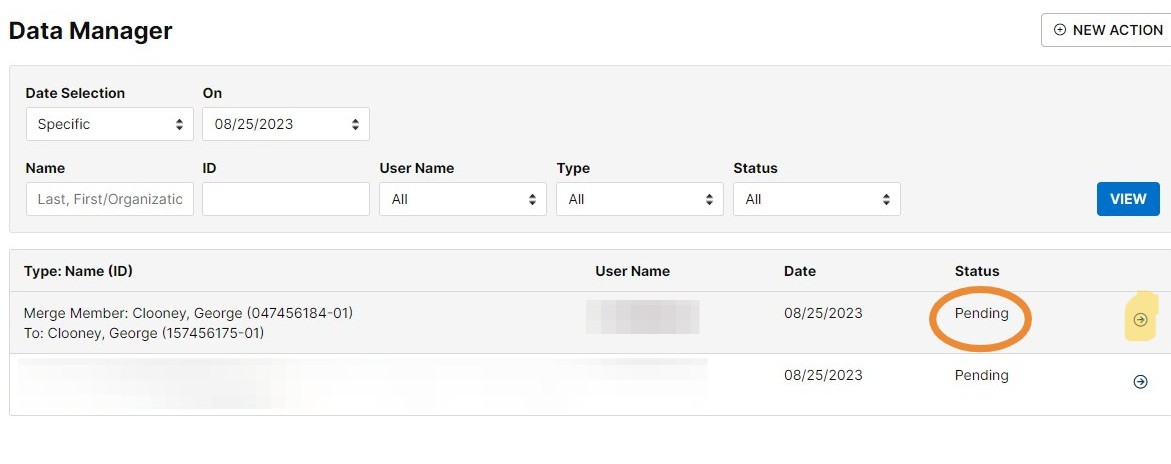
- Here you can see the Pending Status, When the Action was Submitted, and the details of the Merge.
NOTES:
- The same member record cannot be merged, deleted, or moved twice in one day.
- The member ID will change when they are moved or merged to another membership account.
- The following items are moved with the member during a merge or move:
- Member notes
- Program registrations
- Facility usage
- For a merge, all personal information (name, address, etc.) for the member is kept for the member record that is being merged into
- For a move, all personal information is carried over from the member record being moved
- Payments and fees from the Journal for the member record.NOTE: If a single payment pays for program registrations across multiple members and then one of those members is moved, merged, or deleted, the entire payment record is moved.
- Member’s pledges
- Campaigner and campaign leader information (updated throughout the system: Fundraising Levels, Campaigners, Fundraising Contacts, Fundraising Prospects)
- If the member is the only remaining member on a membership account:
- The membership record is deleted.
- Billing methods are moved to the new membership account. NOTE: Any scheduled payments tied to these billing methods will also be moved.
- Scheduled payments are moved to the new membership account.
- The member history is moved to the new membership account.
- Fundraising notes are moved to the new membership account.
- The financial records in Account Entries are assigned to the new membership account.
- If the member is NOT the only remaining member on a membership account:
- The membership record is not deleted.
- Billing methods are not moved to the new membership account.
- Scheduled assigned payments moved to the new member are deleted and will need to be assigned a new billing method.
- The member history is not moved to the new membership account.
- Fundraising notes are not moved to the new membership account.
- Account Entries:
- Records for program registrations tied to the member are updated in Account Entries to be assigned to the new member’s account.
- Records for all other financial information are not updated in account entries and will still be assigned to the member’s previous account.
Moving Member Profiles
- In the Membership menu, click "Data Manager"
- Click "NEW ACTION"
- Choose "Move Member"
- Look up the individual you want to move onto another unit (this action will "remove" them from their current unit / eliminate their individual unit altogether if they were a solo unit).
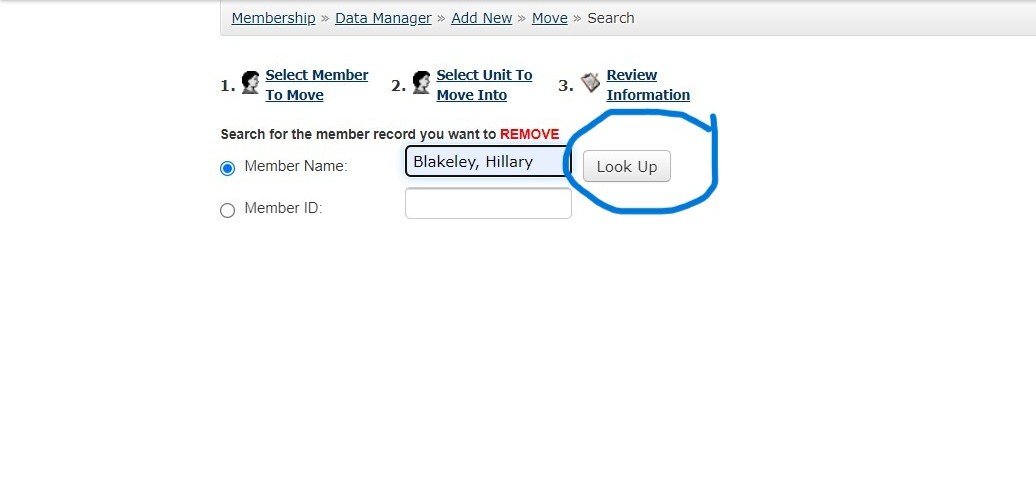
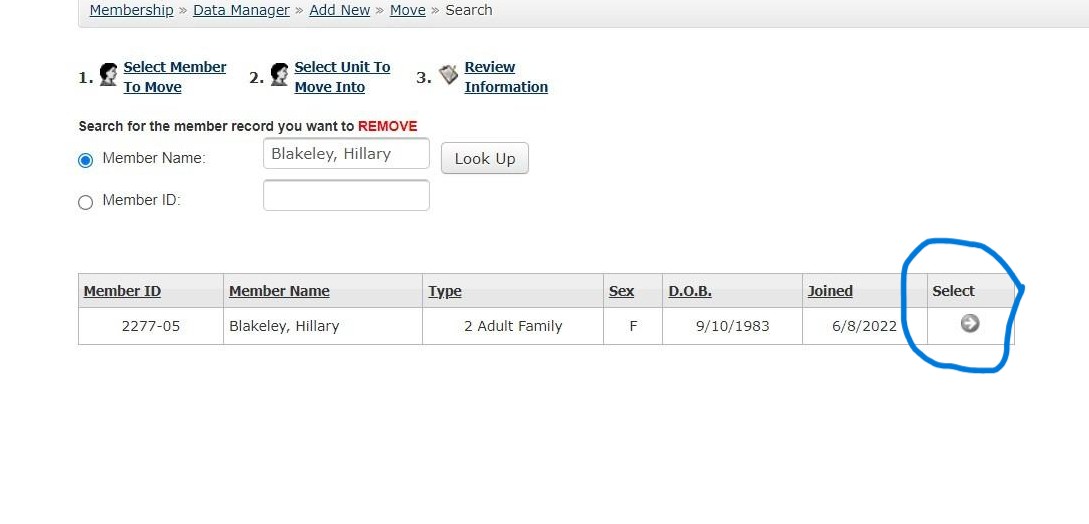
- Confirm that this is the person you want to move, and click the select arrow.
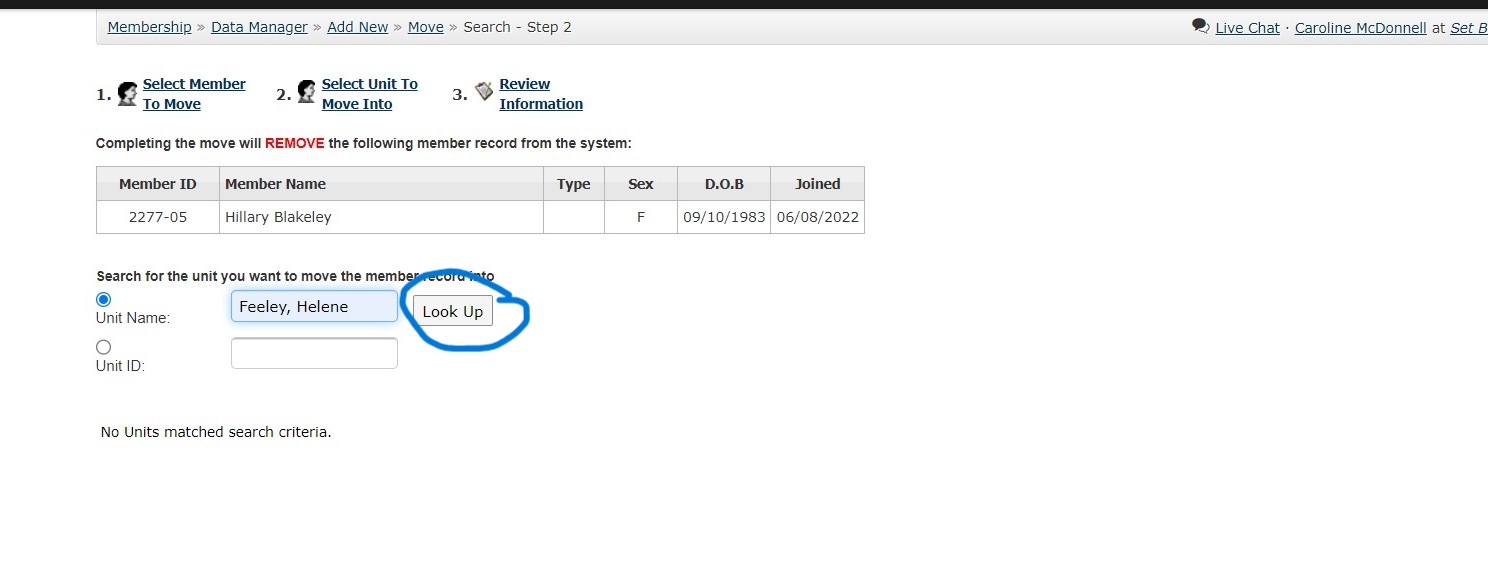
Now look up the individual/unit you want to move this person TO.
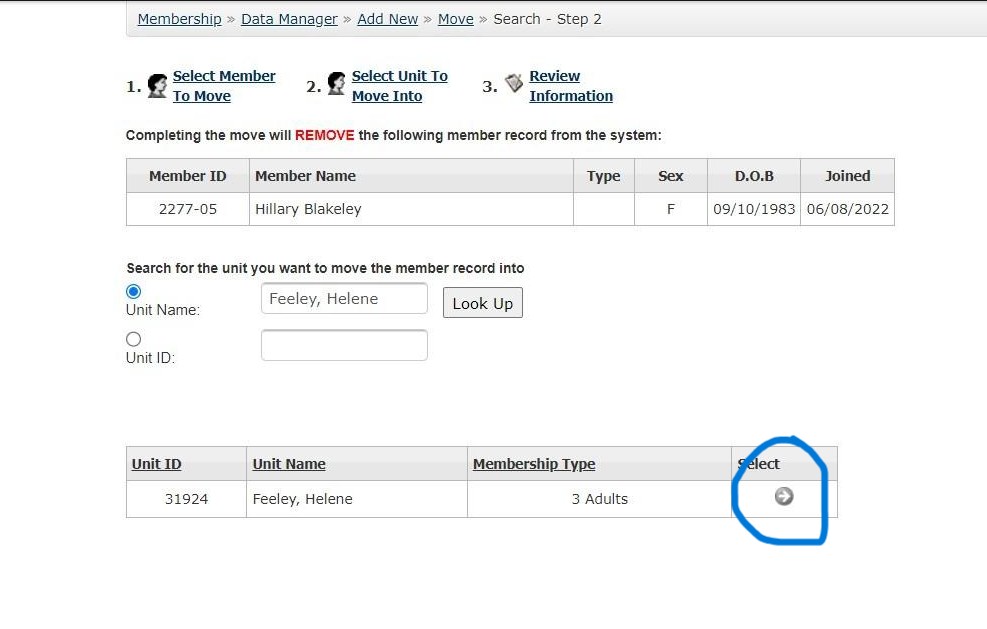
Confirm this is the unit you want to attach the individual to, and click the select arrow.
Click "Submit" to initiate the move. This effectively merges the individual into the new unit, removing the old record.
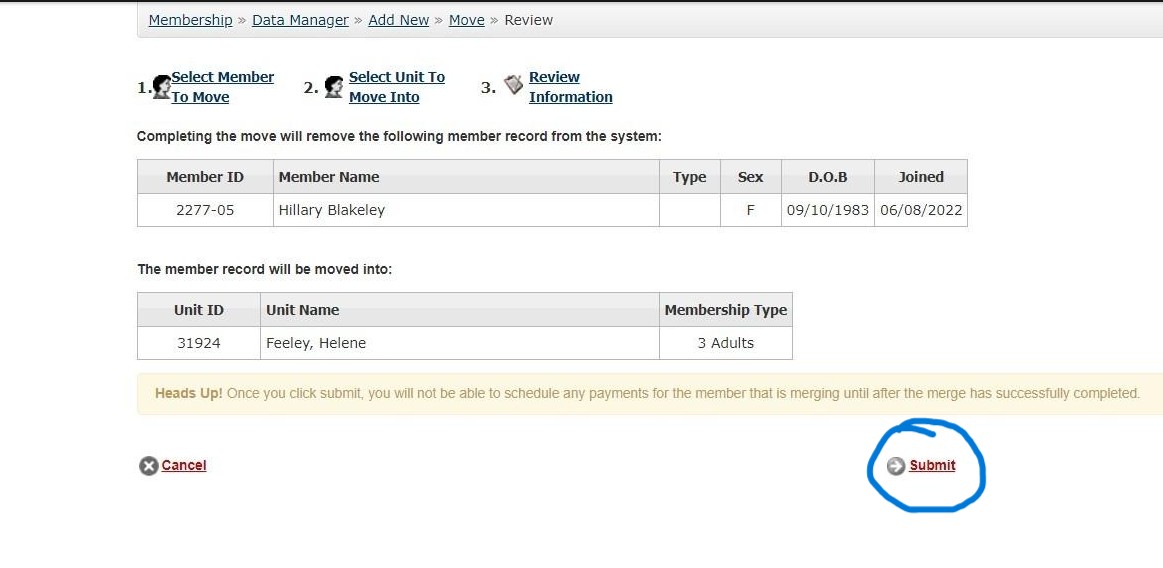
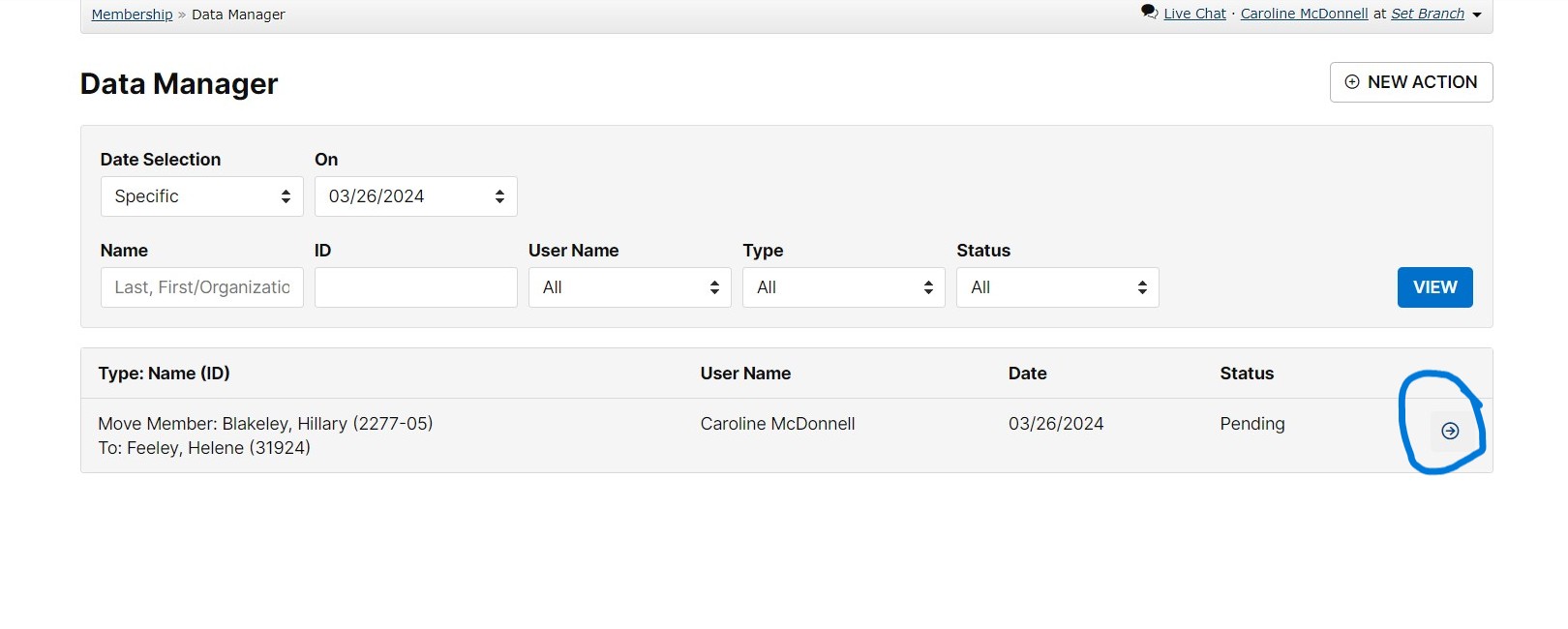
Here you can see that the status is "Pending" - these usually take up to 24 hours to process. Click the arrow for more detail.
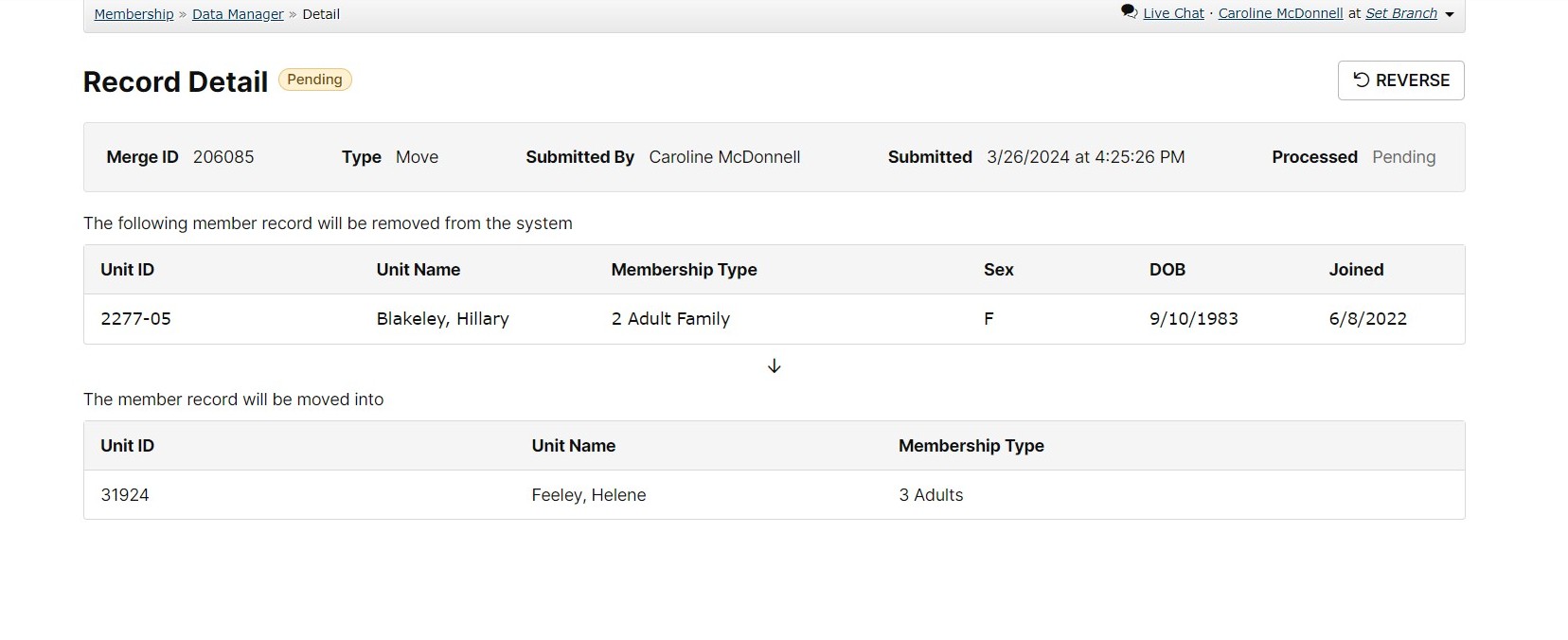
10. Here is the record of the move, including the option to reverse.
Deleting Member Profiles
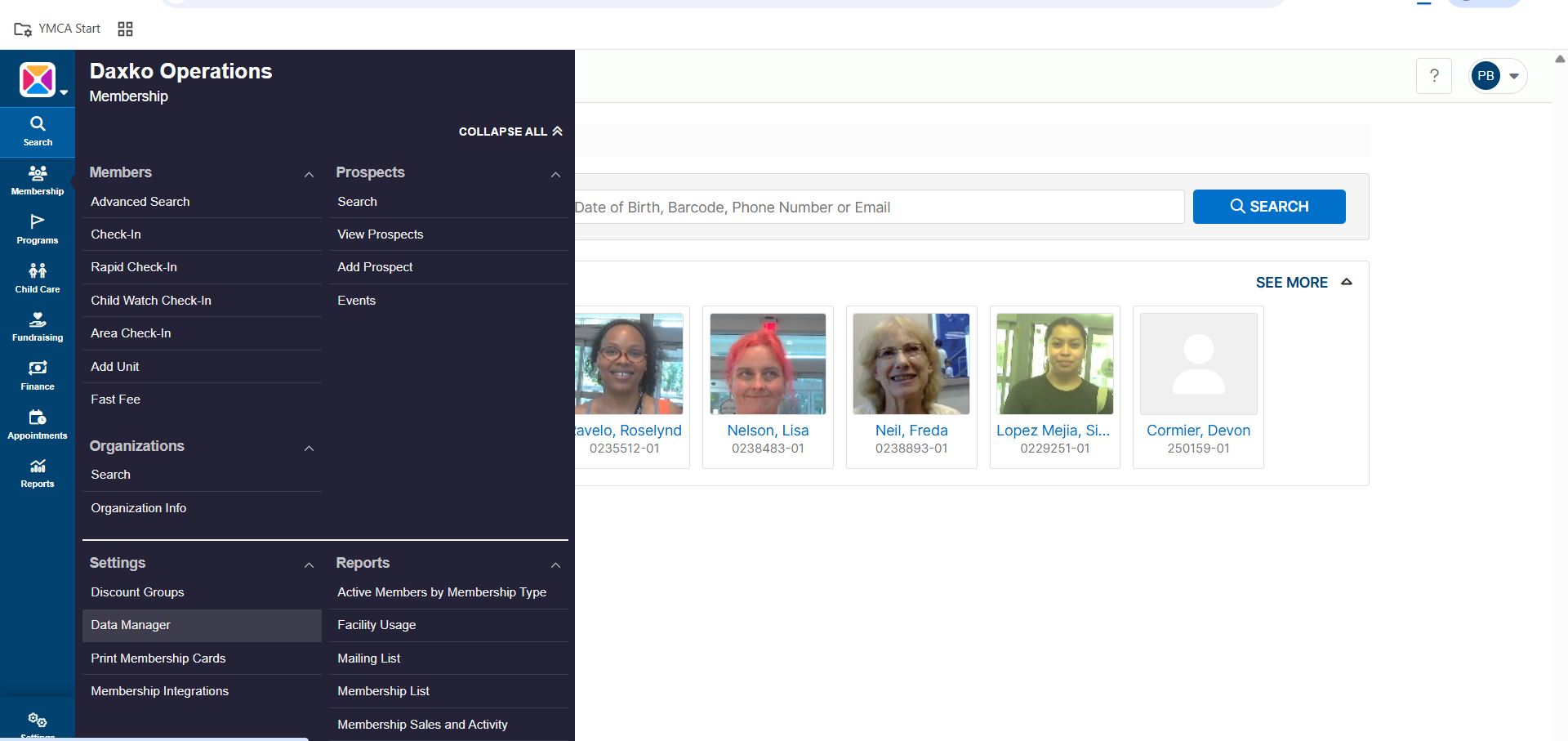
From the main page, click on the Membership tab and select "Data Manager" under Settings.
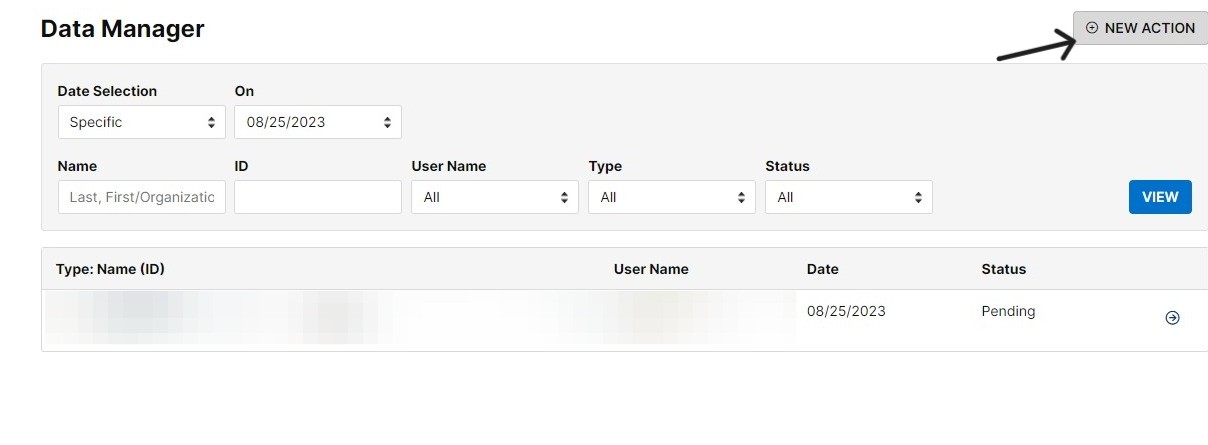
From the Data Manager page, click on the "New Action" button at the top right.
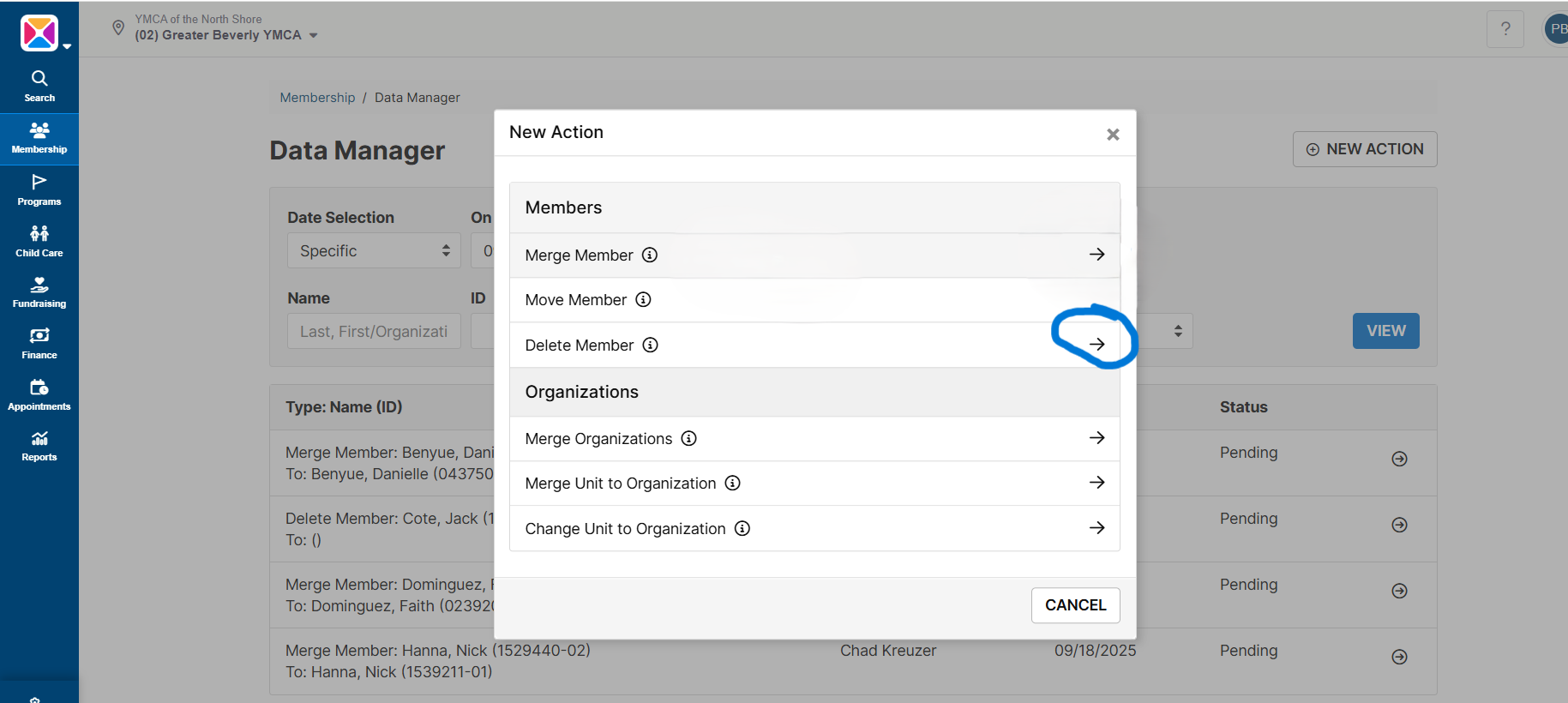
Click the Select arrow button next to "Delete Member."
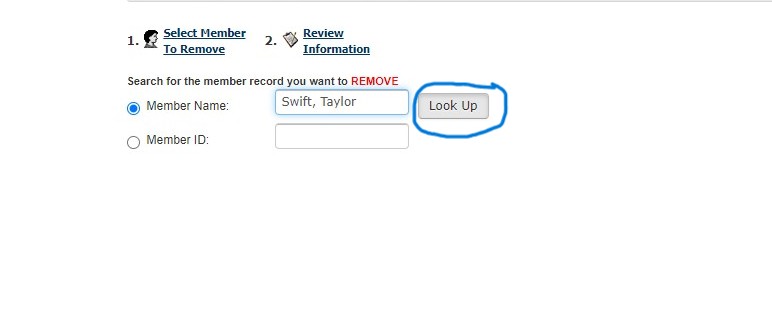
Search for the member you wish to delete by typing in their Last Name, First Name and clicking "Look Up."
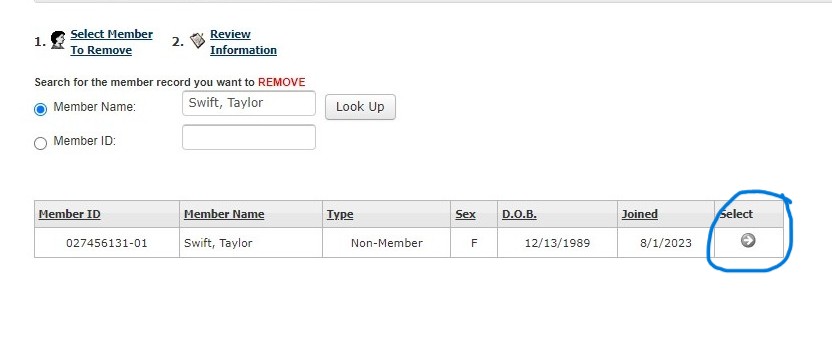
Click on the Select arrow button next to the Member's name.
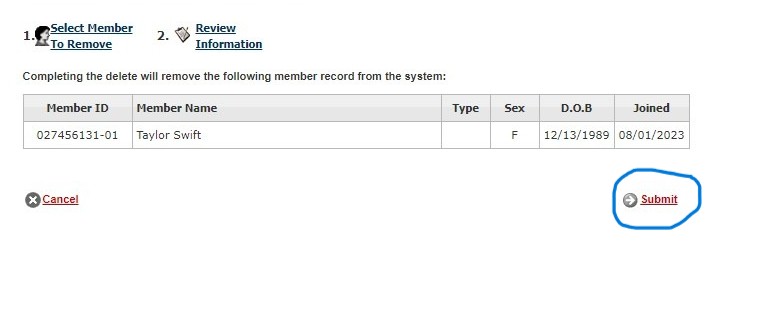
Confirm that this is the unit you would like to Delete and click "Submit" at the bottom right of the page.
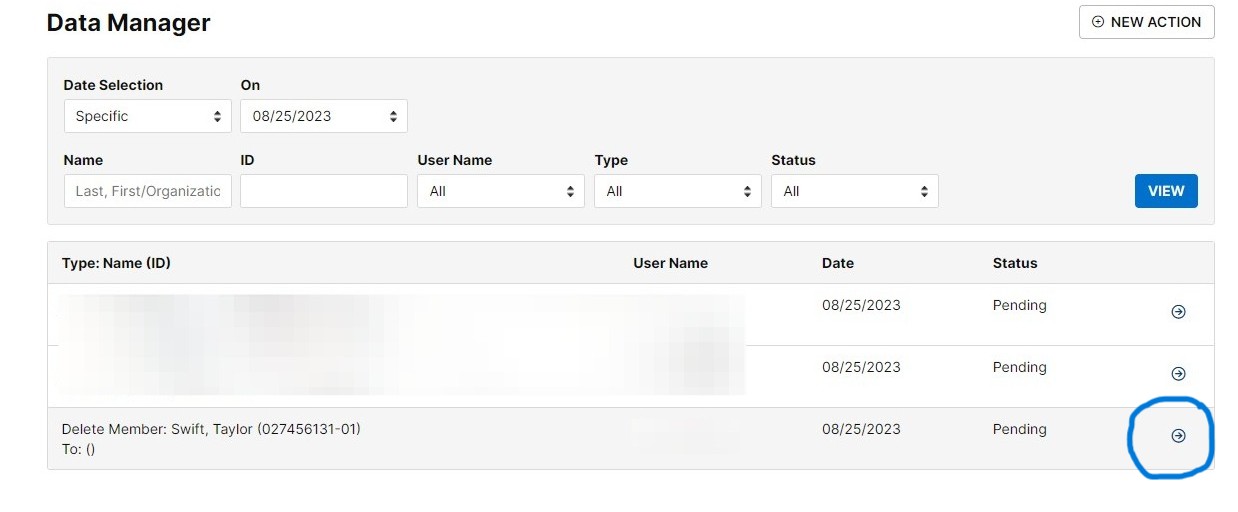
Back on the Data Manager page, you can now see that the request to delete is Pending. Click on the arrow on the right of the page to see more details.
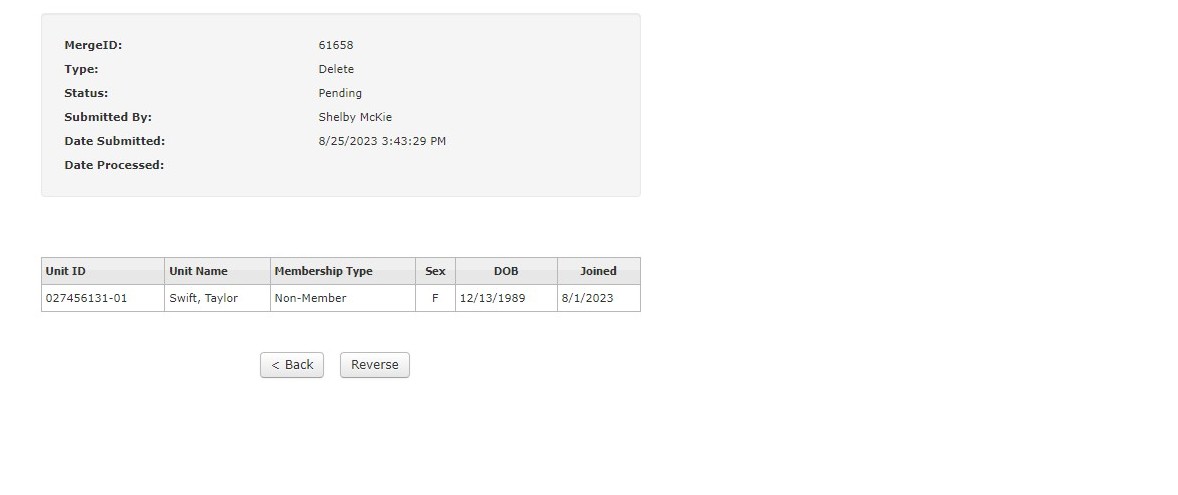
Here you can see the date the request was submitted, and the status of the action.
NOTES:
If the member is the only remaining member in the membership account, he or she can only be deleted if it does not have the following information associated with it:
- Pledges
- Check-ins
- Program registrations
- Campaigner teams
- Financial information
If the member being deleted is NOT the only remaining member in the membership account, he or she can only be deleted if it does not have the following information associated with it:
- Pledges
- Check-ins
- Program registrations
Was this article helpful?
That’s Great!
Thank you for your feedback
Sorry! We couldn't be helpful
Thank you for your feedback
Feedback sent
We appreciate your effort and will try to fix the article