YMCA of the North Shore
Raptor Flag Management
What is Raptor RSO screening?
As the Y, we have a mandate to protect the thousands of kids in our facilities. Part of how we do this is through an embedded screening feature in our member database that continually scans member, guest, and program participant names against the National Registry of Sex Offenders (RSO).
Sometimes this “flags” a new enrollment, and sometimes it “flags” an existing member… Raptor screens the entire Daxko database every 27 days, so sometimes new matches are flagged, even on long-time member accounts.
FOR WELCOME CENTER STAFF:
When an Existing Member is Flagged

Leadership Responsibility
Local Executive Directors, YNS Risk Management Director (Darlene Moulton), and YNS Chief Operating Officer (Gerald MacKillop) all receive notifications for new matches, and are responsible to review those matches daily in the system and follow up with the member as needed. They also receive notifications when current members who are flagged attempt to scan in.
A high level alert will automatically be placed on the unit to restrict access until the Exec, RMD or COO has reviewed and cleared the flag.
Welcome Center Responsibility
If a regular, active member scans in before that review has been completed, please ensure the member has a photo in Daxko before allowing them into the Y.
If they already have a photo, say nothing and allow them into the Y.
If they don’t have a photo, add one and let them proceed into the Y.
“Good morning! I’m just noticing you don’t have a photo in our system, and we do require that for safety and security purposes! Can you step over here to do that - it just takes a second!”
If there’s resistance, use this guide to navigate.
When a New Enrollment is Flagged 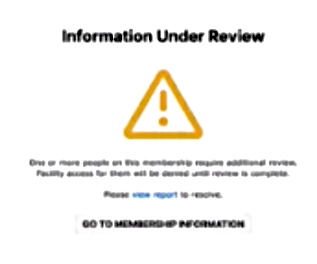
STEP 1: Screen
At the time of the sale of a new membership, Raptor monitoring will flag a potential “match.”
STEP 2: Pause
At that time, Welcome Center Staff will pause enrollment and find a designated director to review the match details before proceeding. Designated directors may include:
Director of Operations / Associate Executive
Member Engagement Director
Executive Director
Welcome Center Staff Script:
“Looks like your account will need a quick review by one of our leadership
staff members - hang on a minute while I get someone to take a look.”
STEP 3: Communicate
The Designated Director will have a conversation with the new member and
ultimately decide if we are able to offer them access to our Y today.
Designated Director Script:
“Thanks for your patience as we have this extra step in the process!
In order to ensure the safety of the thousands of kids we serve, the Y has an automated screening system that proactively looks for potential matches with the National Sex Offender Registry.
Matches are based on things like similar name spelling, date of birth, or other contact info. Often these aren’t true matches, but from a safety perspective, we have an obligation to review them before we can proceed with your enrollment.
Let’s go ahead and make sure your account is fully updated with a current photo so it’s easy for our team to review and update this.”
STEP 4: Review
The Designated Director reviews the match to determine if it’s truly the same person.
If we have a photo ID and the photos match…
Do not proceed with membership enrollment.
“I’m sorry, we are unable to grant access to our facilities until a member of our leadership team can do a full review. The team will be in touch with you within 48 hours to discuss next steps.”
If we have a photo ID and the photos do NOT match…
Do not proceed with membership enrollment, but grant temporary access.
“We can’t complete the enrollment process right now, but based on a potential mismatch, we can grant access to the facility today. A member of our leadership team will be in touch within 48 hours to resolve this.”
When a Match is Flagged During a Member Support Center Call
Support Center Agents will share that the name was flagged for review, explain why using a similar script to the designated director script above, and pause on the enrollment until the individual can come into the local Y and have a photo added.
“... So let’s go ahead and make sure your account is fully updated, and then we’ll need to pause on the rest of your account set-up until you can stop by the Y and have a photo added.
Once that photo is updated on your account, our leadership staff can quickly verify that you are not a true match with the individual on the registry, and the team can complete the rest of your enrollment. Do you have time to get over there today?”
The agent will add a note to the account that they paused enrollment due to an RSO match and directed the individual to come in for a photo to clear it.
The agent will alert the local MED to look for the individual coming in for a photo.
The MED or anyone on the local team can alert your Exec, Gerald, or Caroline - they will review the match ASAP (within 1 business day at longest).
Once cleared, the local team can follow up, thank them for their patience, and proceed with the enrollment.
Was this article helpful?
That’s Great!
Thank you for your feedback
Sorry! We couldn't be helpful
Thank you for your feedback
Feedback sent
We appreciate your effort and will try to fix the article