GroupEx Pro is a private web-based communication portal designed for Group Fitness managers and instructors to simplify management of group fitness scheduling.
Updating your Profile
- Log into www.groupexpro.com using your email address and the password you received from your manager.
- Change your Password (website only)
- Navigate to My Profile > Edit > Create a New Password > Save
- Personnel Fields
- Photo – Pictures will be taken at a later date at your local Y
- Bio – Please use the provided template to create a short bio and send to your Director.
- Phone Numbers – Please add your phone number if it has not already been pre-populated.
Instructor App
- Download the Instructor App to view your class schedules and notifications, rosters and enter class attendance easily.
The Instructor Tools App is a free resource available in the Apple and Google Play stores. You use the same log-in as you use on the website.
Schedule Tab

The Schedule tab will allow you to view your personal teaching schedule. The app only displays classes you are assigned to teach, not the full YMCA schedule. If you are subbing a class, your manager will update GroupEx Pro with you listed as an instructor for that date so you can see that class in your schedule. Please note that if it is a last minute sub, this might not happen and therefore attendance cannot be recorded through the app and must be done on paper.
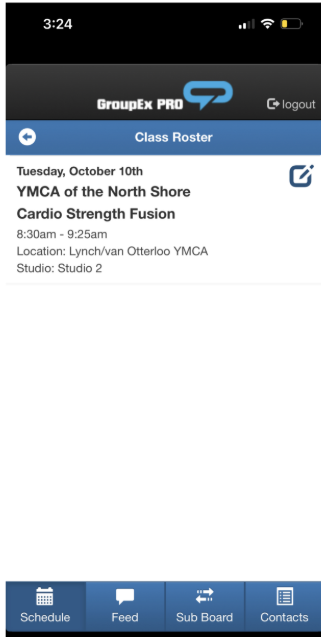
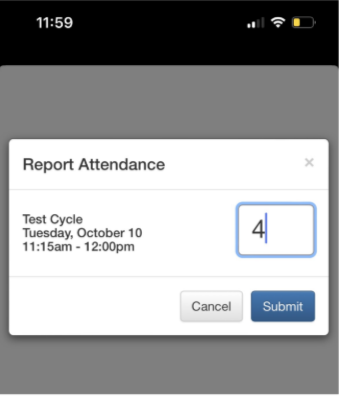
The system allows you to enter attendance once class has started. Classes in the past have a paper/pencil icon next to them. You will not see this icon before your class. Click this icon to enter class attendance. Once attendance is entered, if you need to adjust the number, select the number to re-open the data entry box. You will have 24 hours after class to enter your attendance.
For those classes that require registration, the system allows you to check in members 15 minutes prior to the start of class and ends 24 hours after the class. All the members who have registered for class will be displayed with a plus sign icon next to their name. As members arrive for class please click on the icon next to their name.
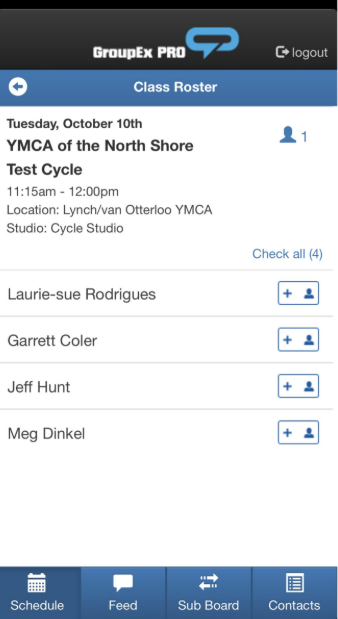
To complete the Check In and add them to the attendance, you need to click on the Check In box at the bottom of the screen. This will update the attendance (the number next to the person icon)
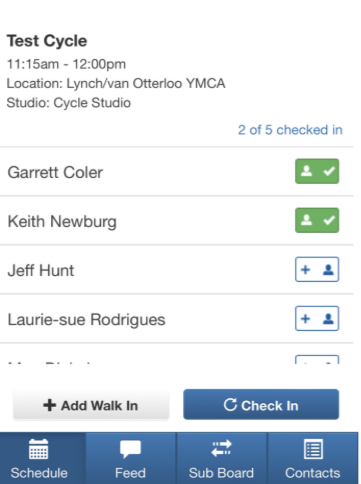
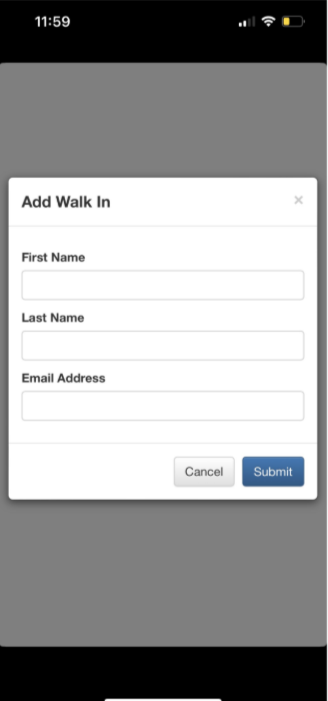
If a member did not register but there is a bike/space/equipment available and attends as a Walk In, you can click on the Add Walk In button at the bottom of the screen above the navigation. You must enter their Full Name and Email Address to add them this way. If you do not have this information, you can also update the attendance directly by clicking on the number next to the person icon and update the attendance number directly.
Sub Board Tab
We are not using this feature at this time.
Feed Tab
The Feed tab shows all Notices and Forum posts, condensed into one page. Select the carat to expand the post. You will also be able to add a comment to these posts.
Contacts Tab
View contact information for other instructors across the association. The envelope and telephone icons will trigger an email/phone call (respectively).
Was this article helpful?
That’s Great!
Thank you for your feedback
Sorry! We couldn't be helpful
Thank you for your feedback
Feedback sent
We appreciate your effort and will try to fix the article